
Integrate any SMTP server with Salesforce
This guide shows how to connect Salesforce to any authenticated SMTP server. Salesforce's email relay cannot log in to a mail server; SMTP Relay sits in between and does that for you. You need the server's hostname and credentials and your Salesforce organization ID. Takes about ten minutes.
Preparation
To configure SMTP Relay, you will first need to gather some information:
- The Salesforce organization ID
- Your email server settings: smtp-server, username, password
It is advised to use a separate SMTP username/password for sending emails from Salesforce.
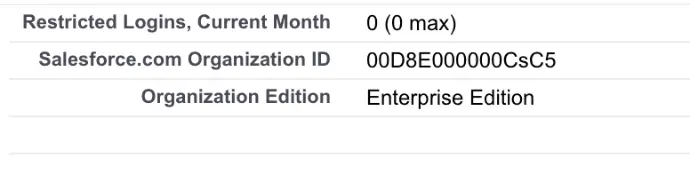
You can find the Salesforce orgId by logging in to Salesforce. It's under Setup, Company Profile, Company Information. It's the 15-character code under Salesforce.com Organization ID.
Configure SMTP Relay
Log in to SMTP Relay and go to your services list:
Click Add a New Relay and enter the SMTP credentials. Enter your Salesforce orgId.
After you click Save, we will automatically validate the authentication settings.
Configure Salesforce
In Salesforce, go to Setup, Email Administration, Email Relay Activation. Enter:
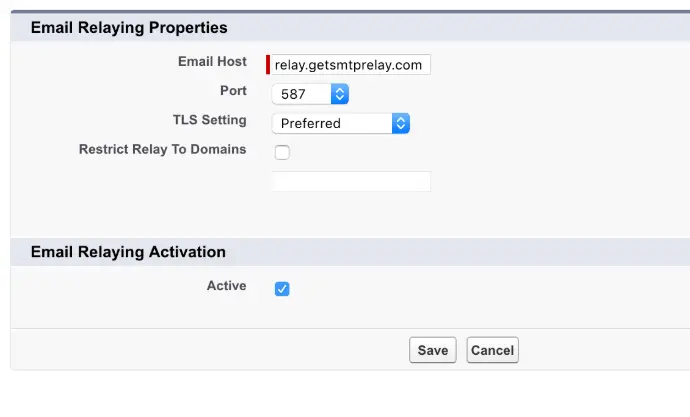
- Email Host: relay.getsmtprelay.com
- Port: 587
- TLS Setting: "Preferred"
- Uncheck "Restrict Relay To Domains"
- Check Active
Click save.
You might notice a warning about using a relay in combination with bounce management. In Salesforce, go to Setup, Email Administration, Deliverability. Uncheck the following options:
- Uncheck "Activate bounce management"
- Uncheck "Enable compliance with standard email security mechanisms"
Finally, click save.
You should now be able to send a test message from Salesforce.