
Integrate Mailgun with Salesforce
This guide shows how to route Salesforce email through Mailgun. You create SMTP credentials for your Mailgun domain, register them in SMTP Relay, and activate email relay in Salesforce. Takes about fifteen minutes.
Preparation
- If you don't already have an account, create one at Mailgun.com
- Be sure to follow the DNS configuration guidelines at Mailgun.com
- Create an account for SMTP Relay
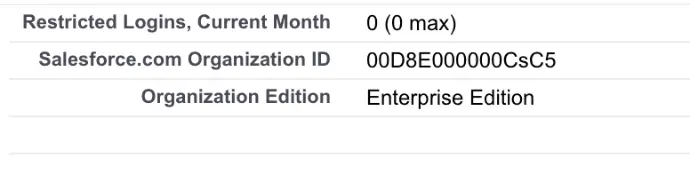
You can find the Salesforce orgId by logging in to Salesforce. It's under Setup, Company Profile, Company Information. It's the 15-character code under Salesforce.com Organization ID.
Configure Mailgun
Log in to Mailgun and create SMTP credentials for a Salesforce sender account (you can use your own or existing credentials, but it's better to have separate usernames/passwords):
Go to Domains, YourDomain.com and click Manage SMTP credentials.
Click New SMTP Credential
Enter a username and create a password. For the username, we'd recommend something like salesforce@yourdomain.com. Click Create Credential.
You have just created an SMTP login for Mailgun. We will be using these credentials to configure SMTP Relay.
Configure SMTP Relay
Log in to SMTP Relay, and go to your services list:
Click Add a New Relay and enter the Mailgun SMTP credentials. Enter your Salesforce orgId.
After you click Save, we will automatically validate the authentication settings.
Configure Salesforce
In Salesforce, go to Setup, Email Administration, Email Relay Activation. Enter:
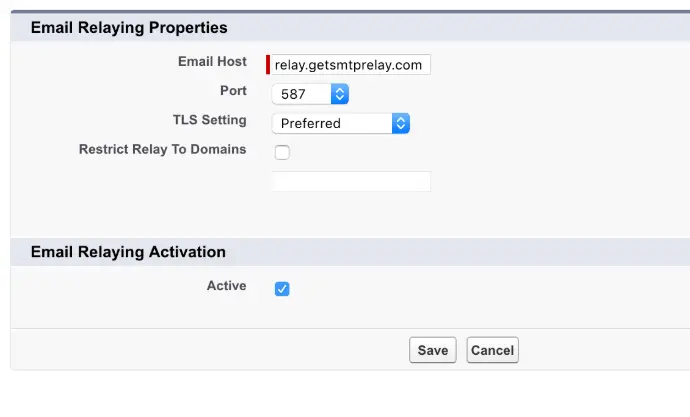
- Email Host: relay.getsmtprelay.com
- Port: 587
- TLS Setting: "Preferred"
- Uncheck "Restrict Relay To Domains"
- Check Active
Click save.
You might notice a warning about using a relay in combination with bounce management. Mailgun will take care of this. In Salesforce, go to Setup, Email Administration, Deliverability. Uncheck the following options:
- Uncheck "Activate bounce management"
- Uncheck "Enable compliance with standard email security mechanisms"
Finally, click save.
You should now be able to send a test message from Salesforce.